
To help you stay informed with the right information at the right time, this guide walks you:
- What You’ll Set Up
- Digests Explained
- Set Up Digests & Notifications for Yourself
- Set Up Digests & Notifications for Your Team (Admin Only)
What You’ll Set Up
Digests
Digests provide a clear summary of patient activity and treatment opportunities.
You can set up Digests for:
-
Yourself
-
Your team (Admin permissions required)
Available Digest types:
-
Practice Daily & Weekly Digests – for Practice Owners / Managers
-
Practitioner Daily Digests – for individual clinicians
Notifications
Notifications send email alerts when important patient messages are received in CoTreat.
This helps ensure:
-
Messages are not missed
-
Requests to proceed are actioned promptly
Digests Explained
Practice Digests
Sent to users with the Practice Owner / Manager role, for a video walkthrough click here.
Practice Digests include practice-wide statistics such as:
-
The Day Ahead
-
Appointments (PMS data)
-
Treatment opportunities identified by CoTreat
-
-
Yesterday
-
Appointments
-
Rebookings
-
Treatment planned and completed (PMS data)
-
Digital Treatment Plans sent (CoTreat data)
-
-
Weekly recap
-
A summary of activity and performance for the week
-
Practice Digests are:
-
Sent weekly by default
-
Optional daily version available
Practitioner Digests
Sent to Practitioners who also have a CoTreat user account, watch our video walkthrough here.
Practitioner Digests include:
-
The Day Ahead
-
Appointments (PMS data)
-
Treatment opportunities identified by CoTreat
-
-
Yesterday
-
Appointments
-
Rebookings
-
Treatment planned and completed (PMS data)
-
Digital Treatment Plans sent (CoTreat data)
-
Who Can Receive Digests?
Digests are only available for users with the following roles:
-
Practice Owner / Manager
-
Practice Digests (weekly by default, daily optional)
-
-
Practitioner
-
Practitioner Digests
-
Practitioners must be added as a user with their desired email address before they can receive digests. See this article on how to add users to CoTreat.
Set Up Digests & Notifications for Yourself
-
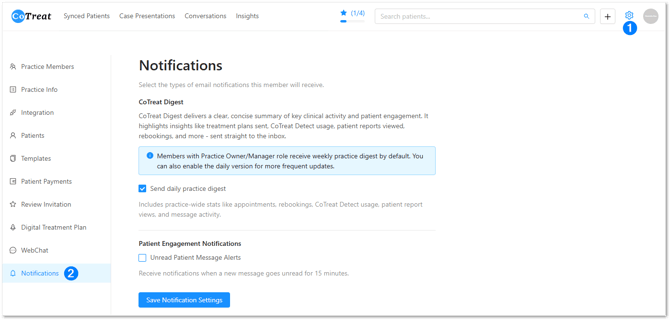
Click the Settings icon
-
Select Notifications
-
Update:
-
Digest preferences
-
Message notifications
-
-
Save your settings
Message Notifications
Unread patient message notifications alert you when:
-
A patient message remains unread
-
A patient sends a Request to Proceed
Set Up Digests & Notifications for Your Team (Admin Only)
Setting up Digests and Notifications for other users requires Admin permissions.
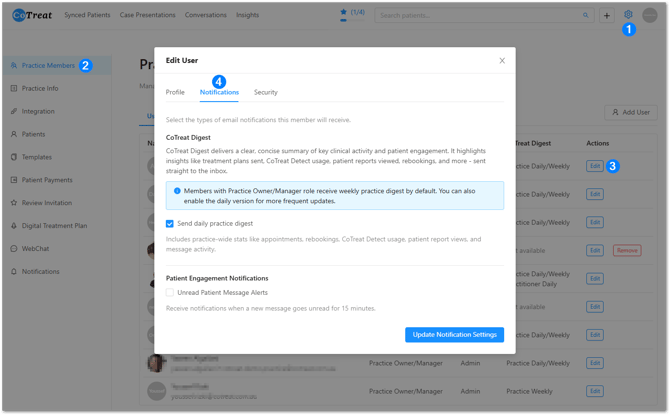
- Click the Settings icon
-
Go to Practice Members
-
Select the Users tab > Click Edit next to a team member
-
Open the Notifications tab
-
Update:
-
Digest preferences
-
Message notification settings
-
-
Save the changes
Note: Message notification settings are only visible when editing the user.
Practitioners must be added as a user with their desired email address before they can receive digests. See this article on how to add users to CoTreat.
Summary
With Digests and Notifications enabled, CoTreat helps your practice:
-
Stay informed without checking dashboards
-
Identify treatment opportunities earlier
-
Respond to patients faster
-
Keep the whole team aligned