
This guide shows you how to connect CoTreat to Core Practice PMS. Once connected, CoTreat can sync patient and appointment information automatically, so everything works together smoothly in the background with minimal setup from your team.
Before you start
Make sure you have:
-
Admin access to CoTreat
-
Your Core Practice login link
-
Your Core Practice username and password
Step 1: Open Integrations
-
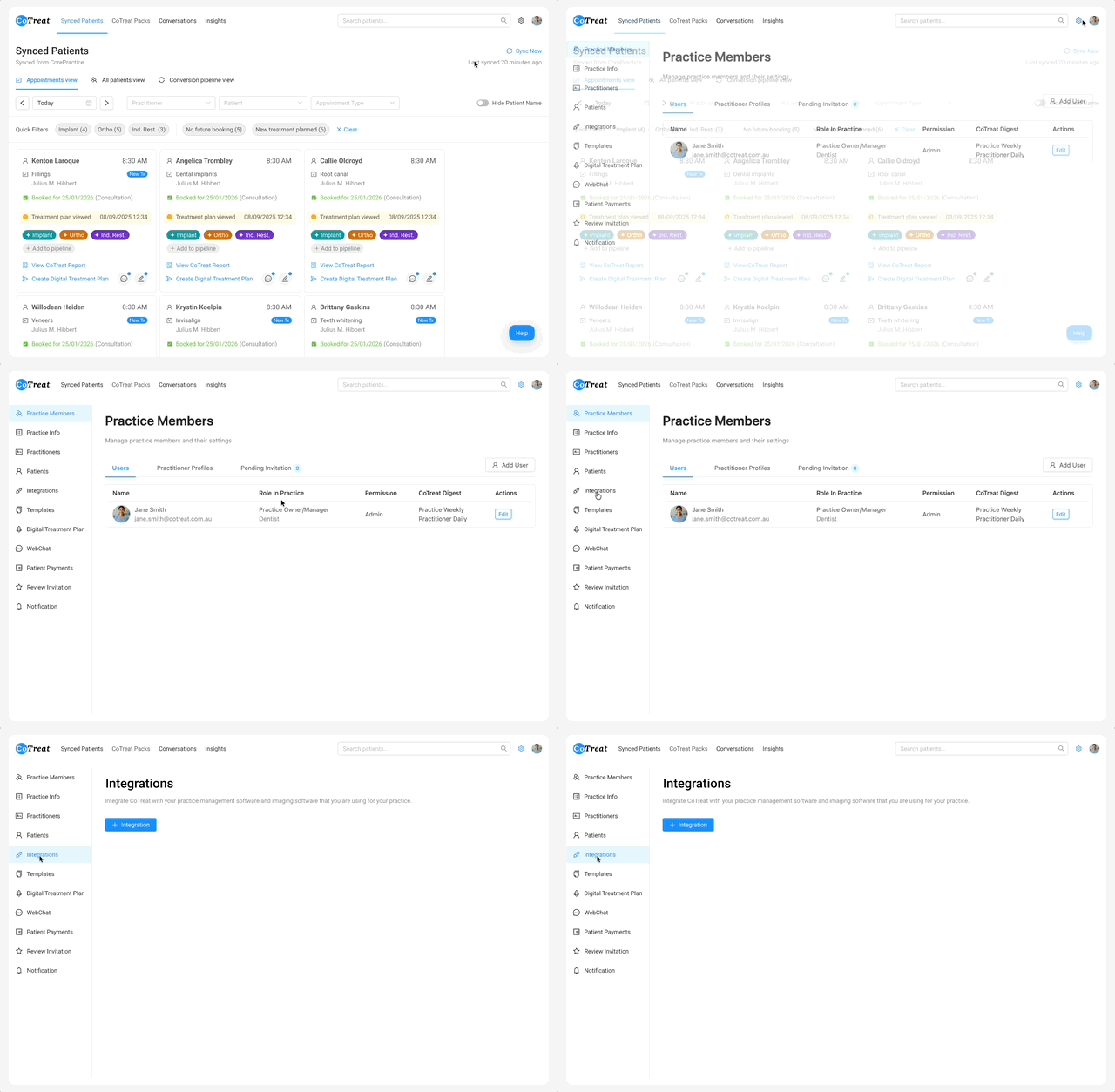
In CoTreat, click the Settings (⚙️) icon in the top-right corner
-
From the left-hand menu, select Integrations
Step 2: Start a new integration
-
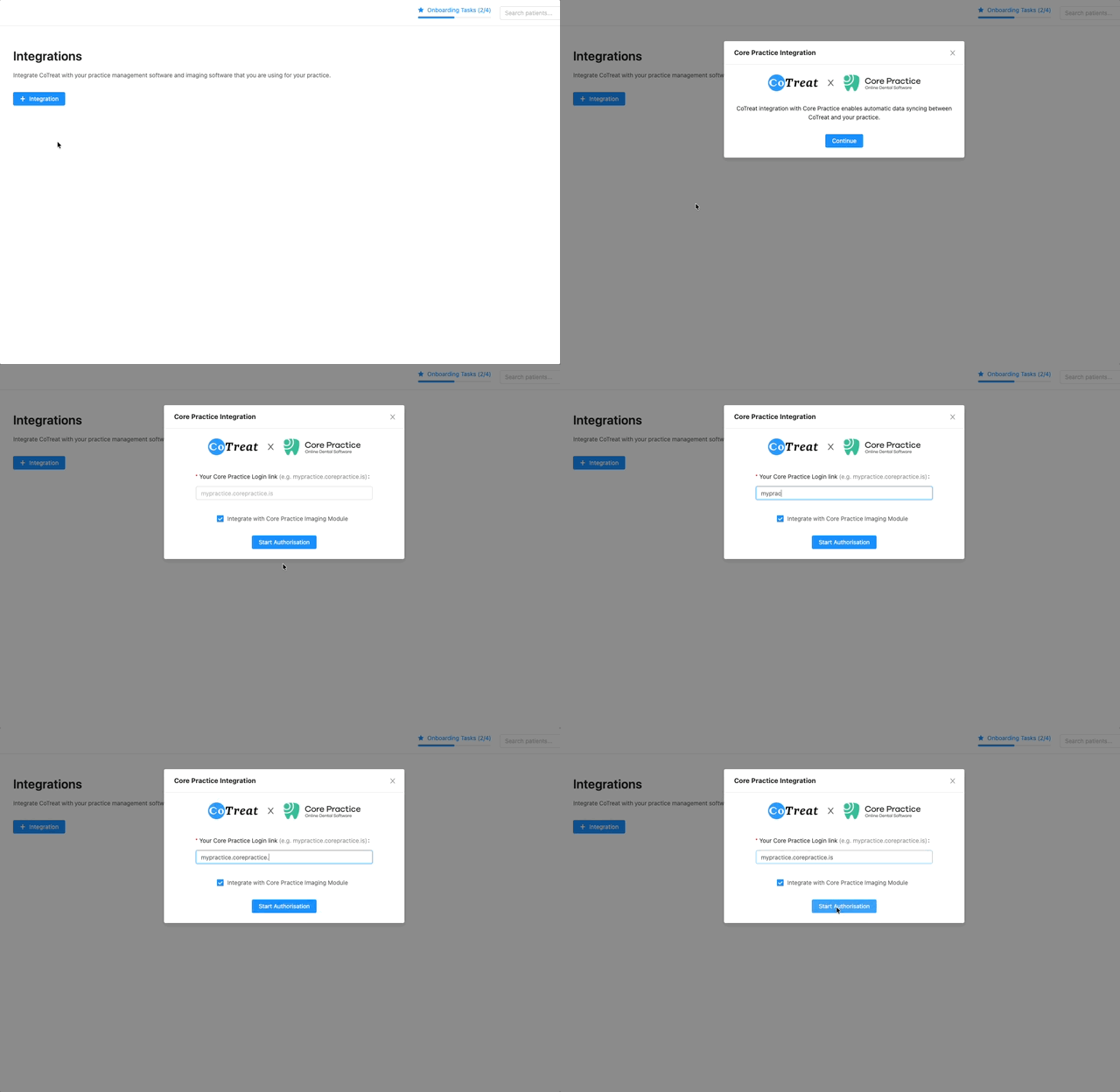
Click + Integration
-
In the window that opens, choose Continue Integration Setup
Step 3: Connect to Core Practice
-
Enter your Core Practice Login Link
-
Tick Core Image Viewer if you use it in Core Practice
-
Click Start Authorisation
You’ll be redirected to Core Practice to sign in.
Once authenticated, you’ll be automatically redirected back to CoTreat.
Step 4: Choose your locations
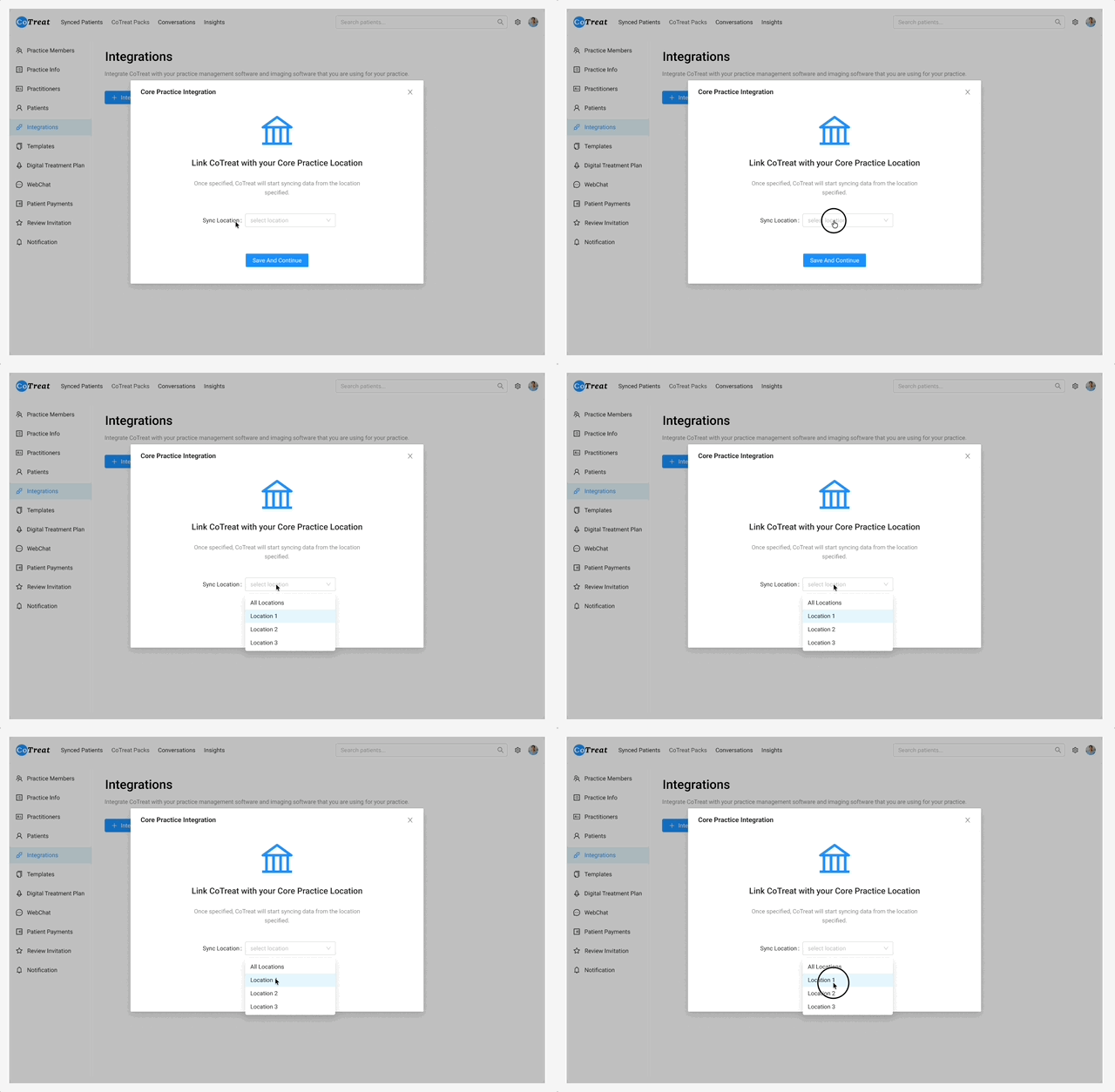
After authorisation, you’ll see a Location Settings dropdown (multi-select).
-
Select All Locations to connect every site
-
Or choose specific locations if you only want certain practices connected
Step 5: Save and finish
Click Save and Continue.
That’s it, your Core Practice integration is now set up.
What happens next
Once connected:
-
Patient and appointment data will begin syncing automatically
-
CoTreat will work quietly in the background alongside Core Practice
-
No extra daily steps are required from your team
Need a hand?
If you’d like help at any point, please reach out directly to the CoTreat team.
If it looks like setup hasn’t been completed, we may also check in to make sure everything is running smoothl.