
Option 1: Add or update a User profile photo
Use this if the user already has a CoTreat login.
-
Log in to practice.cotreat.com.au
-
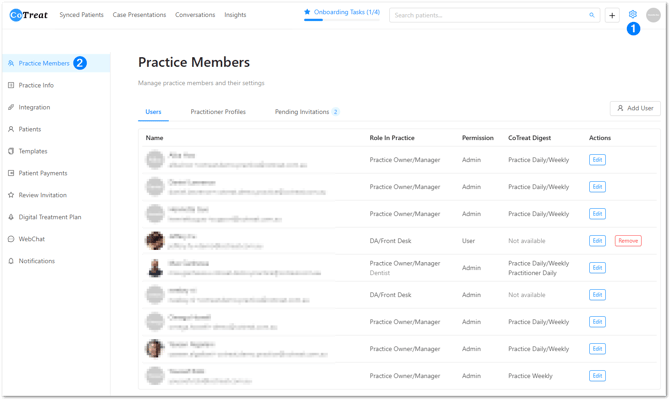
Click the Settings icon
-
Select Practice Members
-
Stay on the Users tab
-
Click Edit next to the user
-
Click the Avatar area
-
Upload or drag and drop a photo
-
Click Update to save
Good to know:
If this user is linked to a practitioner, the photo will also appear on the practitioner profile.
Option 2: Add a Practitioner photo (no user account)
Use this if the practitioner does not need a login but should appear in patient communications.
-
Go to Settings → Practice Members
-
Open Practitioner Profiles
-
Find the practitioner and click Edit
-
Click the Avatar area
-
Upload or drag and drop a photo
-
Click Update to save
Helpful notes
-
Practitioner profiles may already appear if your PMS is integrated with CoTreat
-
Practitioners can only log in and receive digests once a user account is created
-
We recommend using a clear, professional headshot
- For a video guide, please view this link
Summary
You can add photos in two ways:
-
User profiles (for people with logins)
-
Practitioner profiles (for patient-facing communication)
Both options help create a consistent, professional experience for patients.