
CoTreat is designed to protect patient privacy and ensure sensitive information is delivered securely.
When editing patient details—especially mobile numbers—it’s important to confirm the information is correct so messages, Digital Treatment Plans, and reports are sent to the intended recipient.
To help prevent errors, CoTreat may prompt you to confirm changes multiple times. This is intentional and helps safeguard patient data.
What You Can Update
You can edit the following patient details in CoTreat:
-
Basic Info
-
First name
-
Last name
-
Date of birth
-
Gender
-
-
Mobile Number
-
Add, update, or remove a mobile number
-
Assign or remove a guardian where required
-
How Mobile Numbers Are Used in CoTreat
Mobile numbers are used to:
-
Send Digital Treatment Plans and patient messages
-
Verify patient identity when accessing shared information
For privacy reasons, the same mobile number cannot be assigned to two different patients.
If information needs to be sent to a parent or carer, you can assign a guardian instead.
When You May Need to Update a Mobile Number
You might need to edit a mobile number if:
-
The number was entered incorrectly
-
A patient has changed their number
-
Your PMS sync has assigned the same number to multiple family members
-
You receive an error when creating a Digital Treatment Plan or report
How to Update Patient Details
You can follow the steps below or watch the short video included in this article.
Step 1: Open the Patient Record
-
Click Settings
-
Select Patients
-
Click Edit next to the patient you want to update
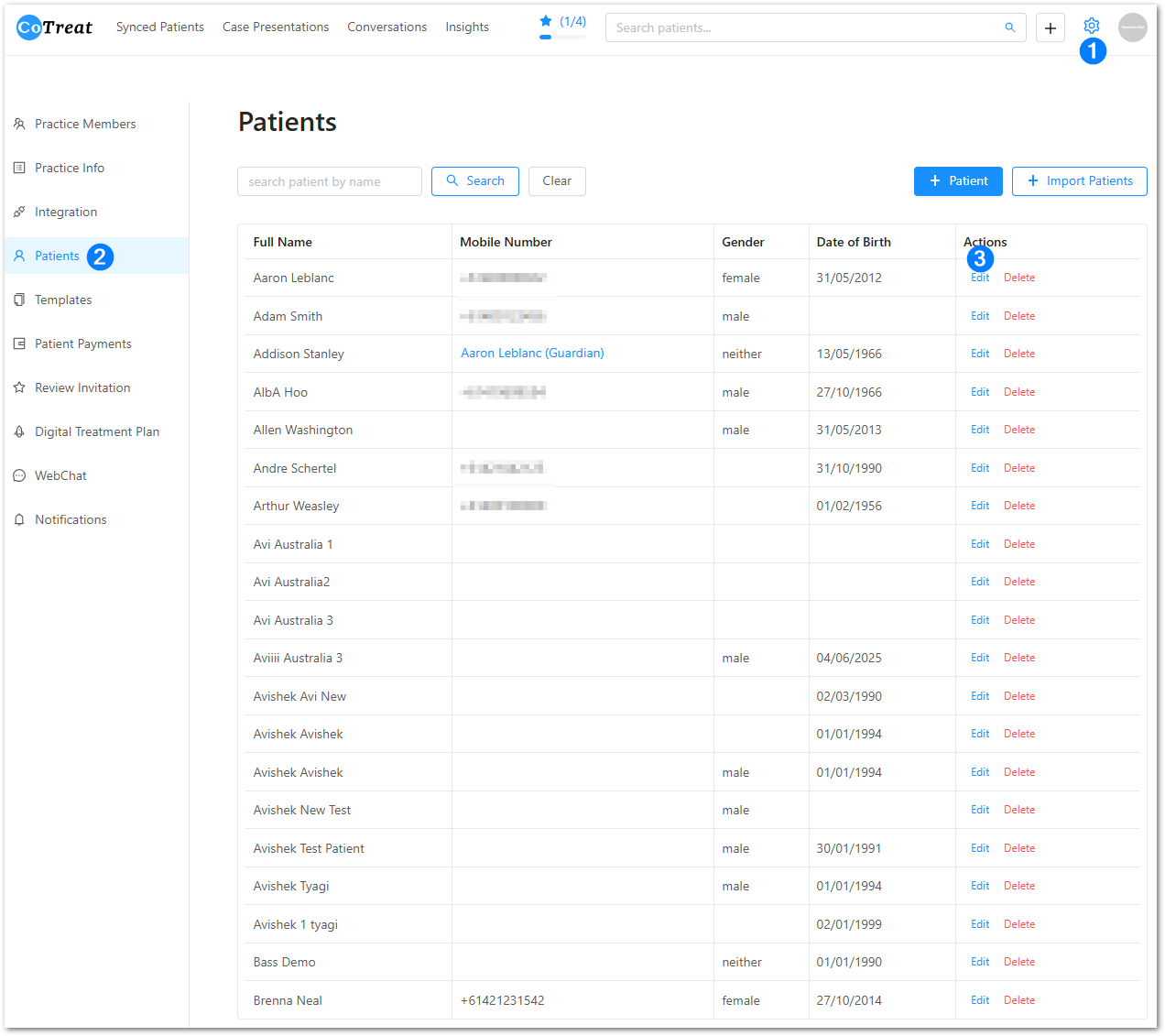
Step 2: Update Basic Info
-
The Basic Info tab opens by default
-
Update name, gender, or date of birth as needed
-
Click Update to save
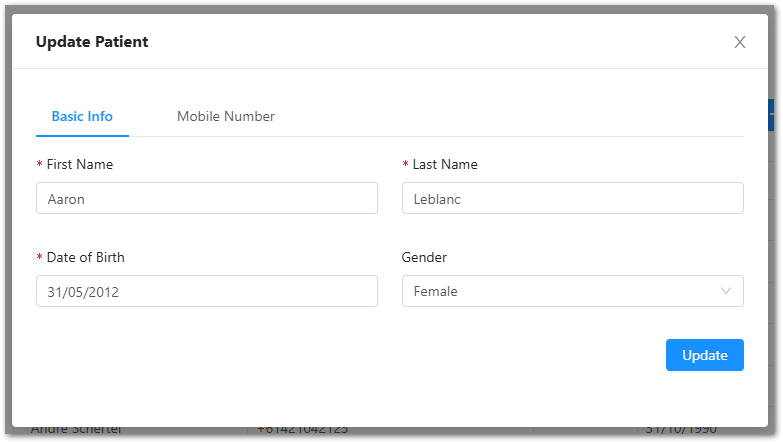
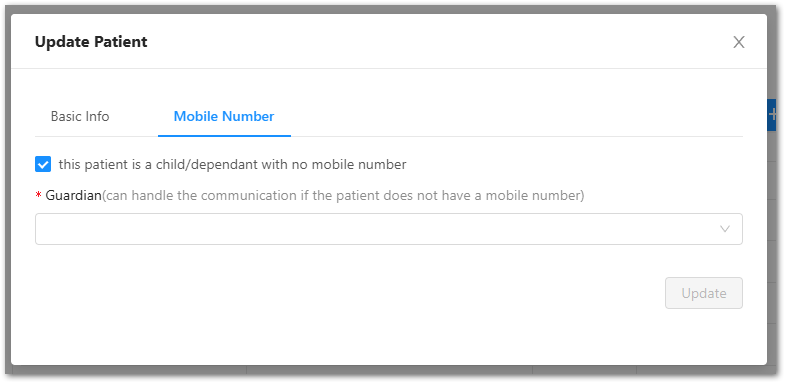
Step 3: Update or Remove a Mobile Number
-
Click the Mobile Number tab
-
Edit or remove the number
-
Mobile numbers must be entered starting with 4
-
Do not include +61 or 0
-
-
Click Update
-
Confirm the change when prompted
You may see multiple confirmation messages—this is expected and helps ensure changes are intentional.
Assigning a Guardian
If a patient is a child or dependent:
-
Ensure a patient record already exists for the guardian
-
In the Mobile Number tab:
-
Tick This patient is a child/dependant with no mobile number
-
-
Search for and select the guardian
-
Click Update and confirm the prompts
Once assigned, all patient messages and treatment plans will be sent to the guardian.
Common Messages You May See
You may encounter prompts such as:
-
“Invalid number” – the mobile number format is incorrect
-
“Mobile number already exists” – the number is assigned to another patient
-
Confirmation warnings – explaining how the change affects access to patient information
Follow the on-screen instructions to proceed safely.
Need Help?
If you’re unsure how to proceed or receive an error you can’t resolve:
-
Click the Help beacon inside CoTreat
-
Or contact the CoTreat support team for assistance
A short walkthrough video is also available here to guide you step by step.