
Only users with Admin permissions can add, edit, or remove users in CoTreat.
This guide shows you how to:
- How to invite a new user
- How to edit an existing user
- Understand roles and permissions
- Permissions explained
- Best practice tips
A short video is also available if you prefer to watch the setup.
How to Invite a New User
-
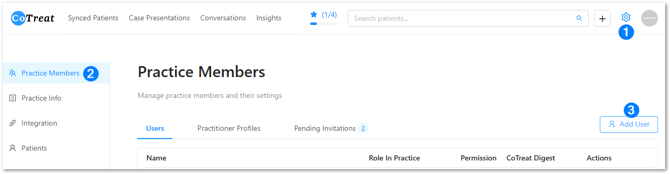
Click the Settings ⚙️ icon in the top navigation
-
Open Practice Members
-
Make sure you are on the Users tab
-
Click Add User
-
Enter the user’s details:
-
Name
-
Email address
-
Role in Practice
-
Permission level
-
Clinical role (Practitioners only)
-
-
Click Invite User
The user will receive an email invitation with a link to:
-
Set their password
-
Complete their profile
-
Log in to CoTreat
You can also click Edit next to an existing user to update their details, role, or permissions.
How to Edit an Existing User
Admins can update a user’s:
-
Name or email address
-
Role in practice
-
Permission level
-
Associated practitioner profile
To edit a user:
-
Go to Settings → Practice Members
-
Find the user in the list
-
Click Edit
-
Make your changes and click Update Profile Settings
To lock a user, open the Security tab → Click Lock User
Once locked, the user will no longer be able to access CoTreat.
To delete a user, first edit their 'Permission' to User and 'Role In Practice' to Front Desk or Practitioner. Admins users cannot be deleted.
Once updated, you will see a 'Remove' button in the user list to delete their account.
Understand Roles and Permissions
Roles determine what a user sees when they log in and how they typically use CoTreat.
Practice Owner / Manager
-
Full visibility across the practice
-
Access to Insights and Patient Engagement data
-
Can view and edit all pages
-
Receives Practice Digests (weekly by default, daily optional)
Use this role sparingly, only for team members who should see full practice-wide data.
Practitioner
-
Focused on their own patients and clinical insights
-
Access to:
-
Synced Patients
-
Case Presentations
-
Conversations
-
Clinical Insights (their own data)
-
-
Receives Practitioner Digests (daily)
⚠️ Practitioners must also be set up as Users to log in and receive digests.
DA / Front Desk
-
Designed for patient communication and follow-up
-
Opens directly to Conversations
-
Can send and follow up treatment plans
-
Does not have access to Insights or Clinical Analytics
Permissions Explained
Permissions control what a user can view or edit.
Admin permissions
Admins can:
-
Add, edit, and remove users
-
Edit Practice Info
-
Edit patient details (name, DOB, mobile – only when necessary)
-
Manage integrations
-
Configure Digital Treatment Plan settings
-
Manage WebChat and notifications
User permissions
Users can:
-
Access core workflows (Conversations, Case Presentations, sending plans)
-
View assigned pages only
-
Cannot edit practice-level settings
Best Practice Tips
-
Always check for an existing Practitioner profile before creating a new one to avoid duplicates
-
Only assign Practice Owner / Manager roles to users who need practice-wide data
-
Keep Admin permissions limited to reduce risk and maintain data integrity
-
Update patient details carefully to preserve privacy and accuracy
Summary
Managing users in CoTreat ensures:
-
The right people see the right information
-
Your workflows stay efficient
-
Patient data remains secure
If you need help inviting users or choosing the right role, please reach out to our CoTreat team and we will be happy to assist.