
Why this matters
WebChat lets potential patients message your practice while they’re on your website — without calling or waiting on a form reply. It can save your team time, capture more enquiries, and make it easier for patients to take the next step.
Who this is for
Practice Managers, Owners, Reception/Front Desk, or anyone who manages your website provider/IT contact.
When you’d use this
Use this when you want to add (or re-add) the CoTreat WebChat widget to your website, or update the look and greeting message.
What you’ll need before you start
-
Admin access to CoTreat (to view WebChat settings)
-
A website contact (IT/web developer/agency) who can paste a small code snippet into your website
Part 1 - Install WebChat (copy the code for your website)
-
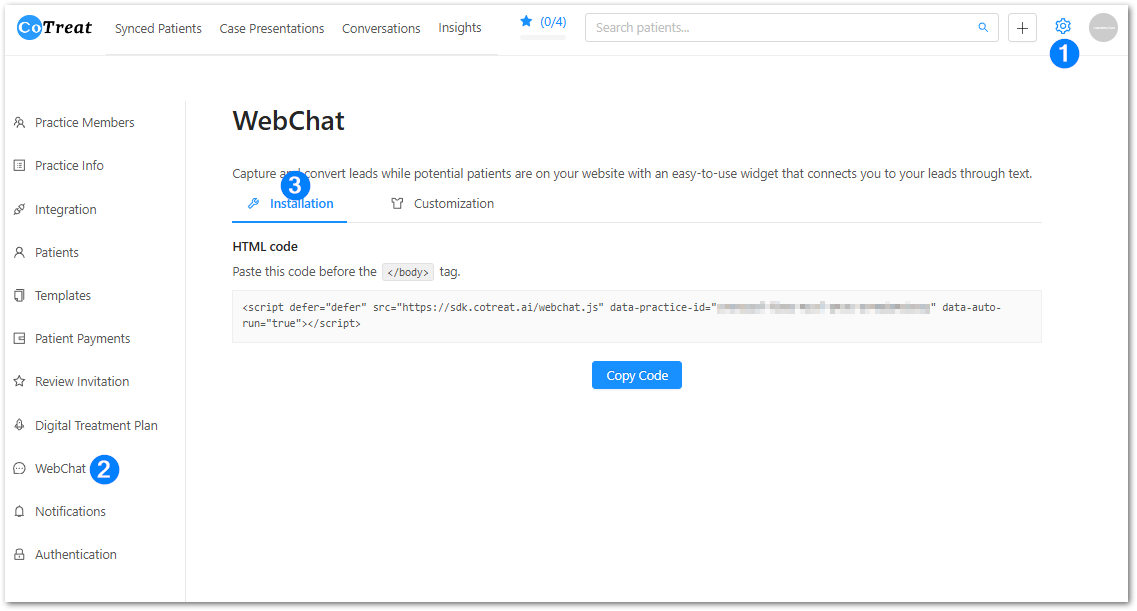
In CoTreat, go to Settings (top right) > WebChat
-
Click the Installation tab
-
Under HTML code, click Copy Code
-
Send the copied code to your website contact (IT/developer/agency) with this instruction:
-
“Please paste this code just before the closing
</body>tag on every page of our website.”
-
-
Ask them to confirm once it’s done, then open your website and check that the chat widget appears.
If your practice has multiple websites or a landing-page site, the code needs to be added to each site where you want WebChat to appear.
Part 2 - Customise the WebChat look and greeting
-
In CoTreat, click the Setting icon on the top right > Click WebChat.
-
Click the Customisation tab.
-
Update the settings:
-
Position: Choose where the widget sits (e.g., left or right).
-
Greeting: Add a short, friendly message (example below).
-
Avatar: Upload your practice logo or a friendly team photo (optional).
-
Theme colour: Set a colour that matches your branding.
-
-
Click Save
Greeting examples
-
“Hi there 👋 Have a question? Text us here.”
-
“Need an appointment or a quote? Message us here.”
-
“Questions about treatment options? We’re happy to help.”
Best-practice tips
-
Keep the greeting short (1 sentence is enough). Busy people won’t read a paragraph.
-
Use a recognisable avatar (logo works well) so patients trust it’s your practice.
-
Match your brand colour so it looks like part of your website (not a random pop-up).
-
Decide who will reply (e.g., reception) and aim to respond during business hours where possible.
If something doesn’t look right
-
Widget not showing? Ask your website contact to confirm the code was added before
</body>and published to the live site (not just a draft). -
Showing on some pages but not others? The code may only be installed on certain templates/pages - ask them to apply it site-wide.
-
Changed greeting/colour but nothing updated? Refresh your browser or try an incognito/private window (sometimes caching hides changes).
If you’d like a hand or something doesn’t look right, our support team is happy to help.