
Online reviews play an important role in helping new patients find and choose your practice.
Google also prioritises businesses with more reviews, which can improve your visibility in local search results.
CoTreat makes it easy to invite happy patients to leave reviews on Google or Facebook using the Conversations feature.
This guide shows you how to set up review invitations.
A short video walkthrough is available here.
What you’ll need before you start
-
Admin access to CoTreat
-
Access to your practice’s Google Business Profile and/or Facebook page
Enable review invitations
-
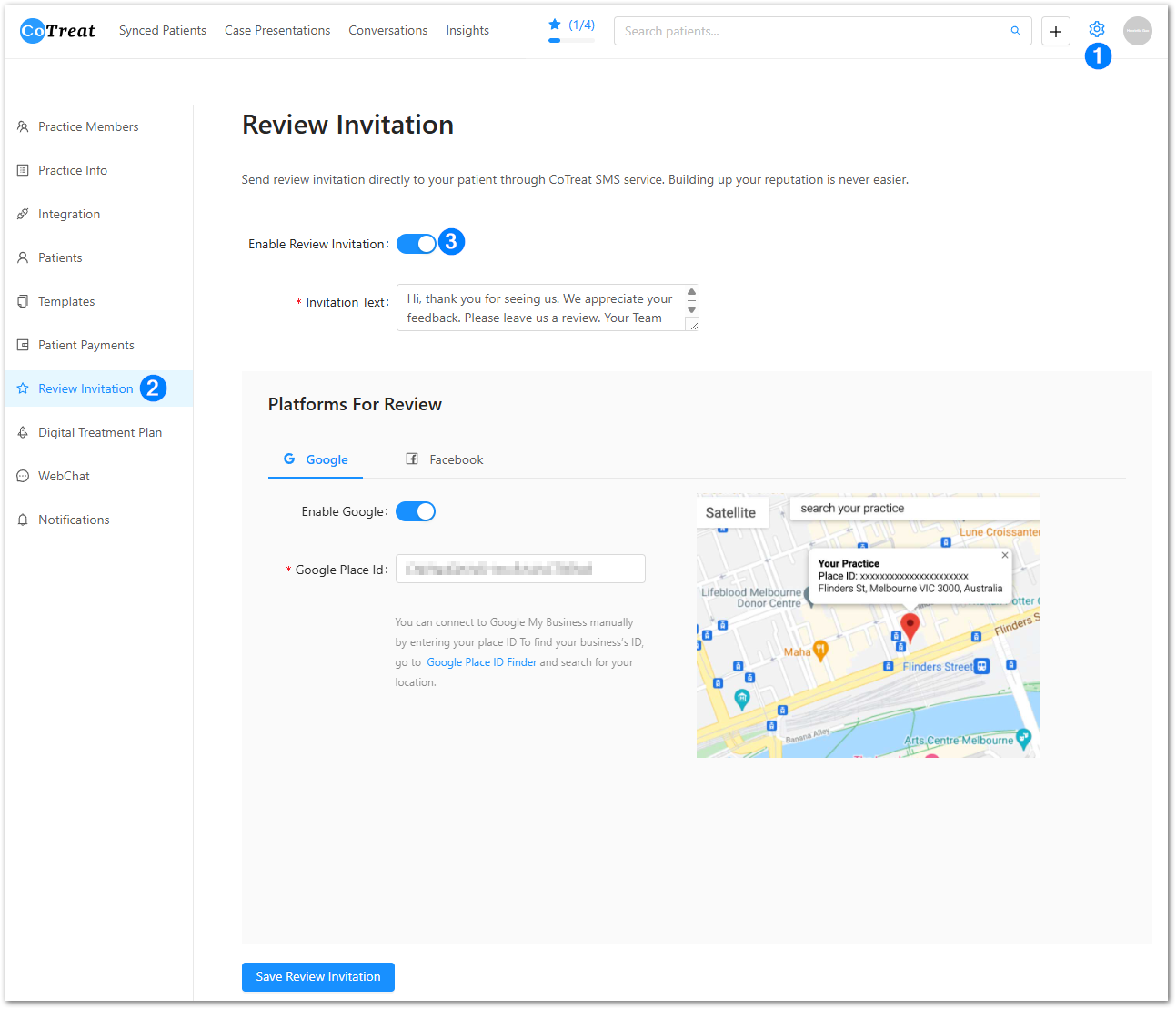
In CoTreat, click Settings (⚙️)
-
Select Review Invitation
-
Toggle Enable Review Invitation on
Once enabled, you’ll be able to send review invitations to patients via SMS.
Customise the invitation message
In the Invitation Text box, you can customise the message patients receive when you send a review invitation.
We recommend keeping the message:
-
Friendly and appreciative
-
Short and clear
-
Easy for patients to understand
This message will be sent alongside the review link.
Set up Google reviews
To enable Google reviews:
-
Go to Google Place ID Finder
-
Search for your practice
-
Copy your Google Place ID
-
Paste the Place ID into the Google Place ID field in CoTreat
-
Ensure Enable Google is turned on
This links CoTreat directly to your Google Business Profile.
Set up Facebook reviews
To enable Facebook reviews:
-
Go to your practice’s Facebook page
-
Click the About tab
-
Copy your Facebook Page ID
-
Paste the Page ID into the Facebook field in CoTreat
Patients will be directed to your Facebook page to leave a review.
Save your settings
Once you’ve added your review platforms:
-
Click Save Review Invitation
Your review invitations are now ready to use.
What happens next
Once set up:
-
You can send review invitations directly from Conversations
-
Patients receive an SMS with a link to leave a review
-
Reviews help build trust and improve your online visibility over time
Best practice tips
-
Send review invitations to patients after positive interactions
-
Keep the invitation message warm and personal
-
Focus on making it easy for patients to leave a review
-
Avoid sending multiple review requests too close together
Summary
Review Invitations in CoTreat help your practice:
-
Collect more Google and Facebook reviews
-
Improve local search visibility
-
Make it easy for patients to share feedback