
Uploading your existing patient base can save time and help you get more value from CoTreat sooner. This guide shows you how to export your patient list from Exact and import it into CoTreat.
Before you start
Make sure you have:
-
Access to Exact
-
Access to CoTreat
-
Permission to export patient data from Exact
Step 1: Export patients from Exact
-
In Exact, go to Configure → Export Files
-
Select Patient information
-
Choose where you want the file saved
-
Click OK
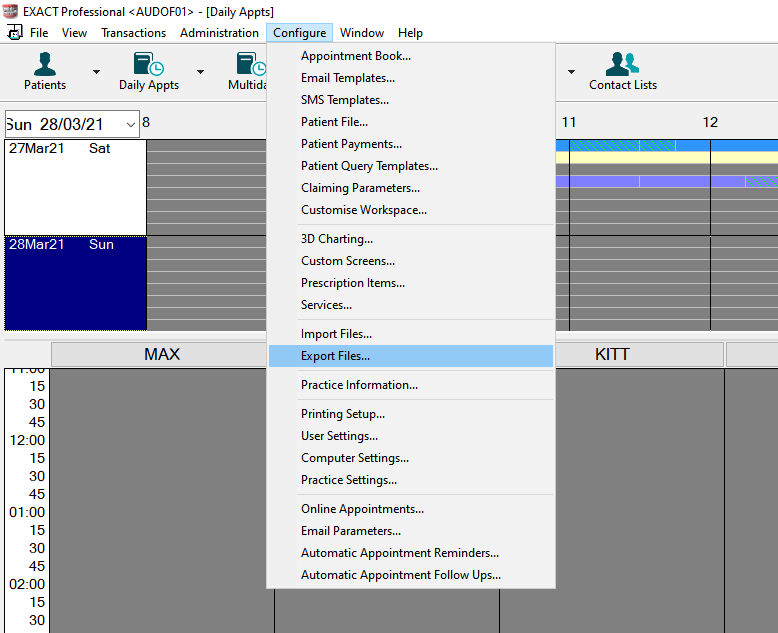
Exact will create a CSV file containing your patient data.
Good to know:
CoTreat will only use the following fields:
-
Patient name
-
Date of birth
-
Gender
All other information in the file is ignored.
Step 2: Open Patient Import in CoTreat
-
In CoTreat, click Settings (⚙️)
-
Select Patients
-
Click + Import Patients
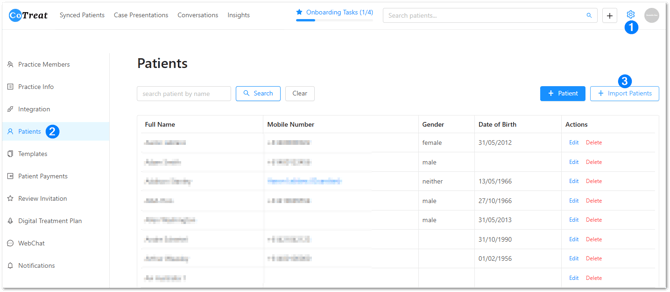
Step 3: Upload your CSV file
-
Select Exact as the source system
-
Drag and drop your CSV file into the upload area
-
Check that the information looks correct
-
Click Import
Step 4: Review import results
After the import finishes, CoTreat will show a results screen with:
-
Successfully imported patients
-
Any records that failed to import
If there are failed records:
-
Review the errors shown
-
Correct the information in your CSV file
-
Upload the file again
Only new patient records will be added on subsequent uploads.
What happens next
Once imported:
-
Your existing patients will be available in CoTreat
-
You won’t need to add them manually
-
CoTreat will be ready for day-to-day use sooner