
CoTreat is your extra set of hands when it comes to patient follow-up.
The Case Presentations area helps you see which patients have received, viewed, or responded to a Digital Treatment Plan, so you can focus your time where it matters most.
This guide shows how to use Case Presentations to support your existing follow-up process.
What is Case Presentations
Case Presentations gives you a single view of all Digital Treatment Plans sent from your practice.
From this screen, you can:
-
See when a plan was created and sent
-
Track patient engagement (viewed, not viewed, waiting for response)
-
Review total treatment value
-
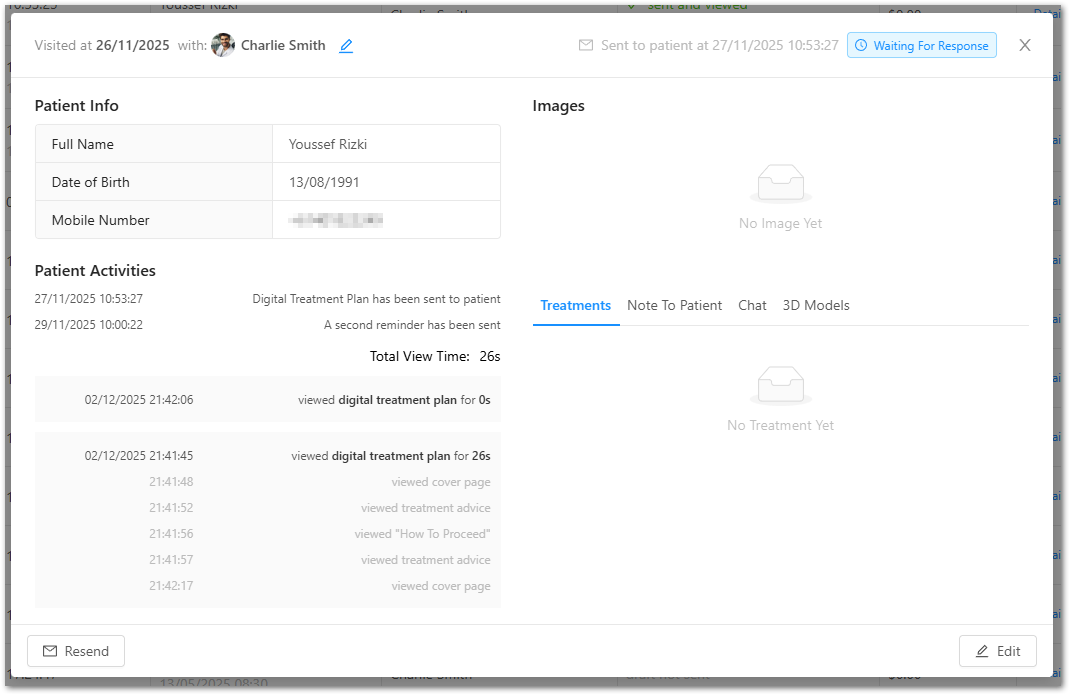
Open individual cases to view activity, images, treatments, and notes
Think of Case Presentations as your follow-up dashboard.

Understanding statuses
Each case has a status to help you prioritise action:
-
Sent not viewed yet – Patient hasn’t opened the plan
-
Sent and viewed – Patient has engaged
-
Waiting for response – Patient has viewed but not yet booked or replied
-
Draft not sent – Plan created but not sent to the patient
Patients who have viewed but not responded are usually the highest-value follow-ups.
Use Case Presentations as your follow-up list
You likely already have a follow-up process in place. Case Presentations helps you apply that process more efficiently.
Example workflow
-
Go to Case Presentations
-
Filter by Status (e.g. Viewed – Waiting for response)
-
Filter by Date Sent
-
Open each case using Details
-
Call the patient
-
If no answer, send a message via Chat
-
If you speak with them, update the status accordingly
-
This allows you to focus on patients who are already engaged.
View patient activity and engagement
Inside a case, you can see:
-
When the plan was sent
-
If and when the patient viewed it
-
Total view time
-
Which sections were viewed (cover page, treatment details, images, 3D models)
-
Any reminders sent
This context helps you tailor your follow-up conversation and timing.
Update patient status
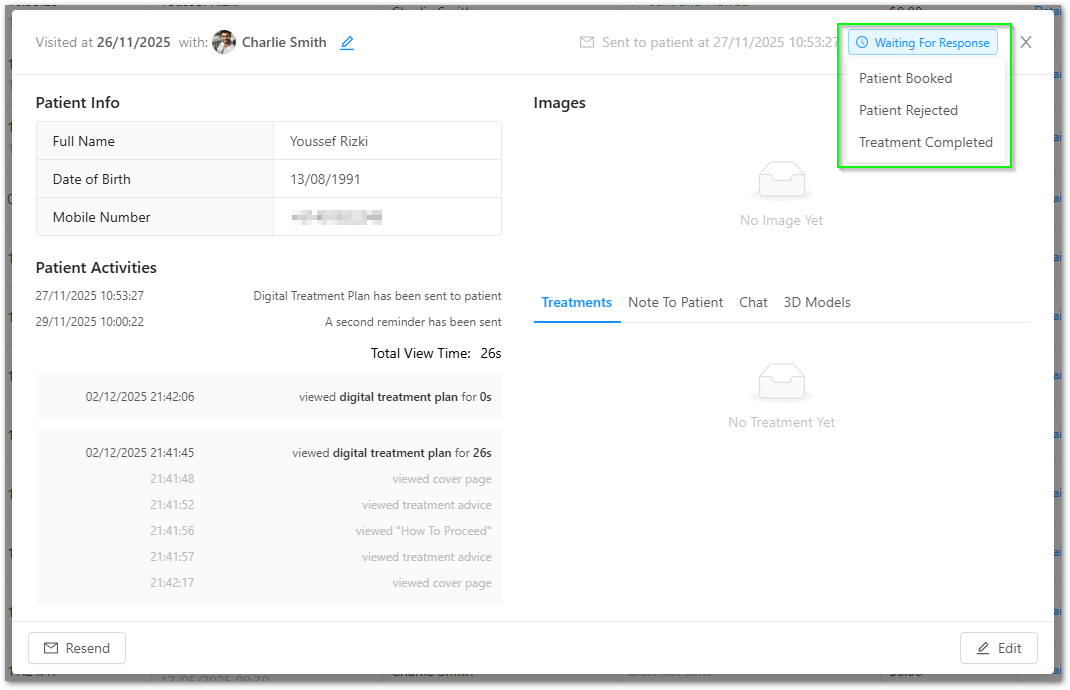
After speaking with or messaging a patient, update their status to keep your team aligned.
Common status updates include:
-
Patient booked
-
Patient rejected
-
Treatment completed
Keeping statuses up to date ensures your Case Presentations list remains accurate and useful for the whole team.
Best practice follow-up tips
-
Tell patients at the appointment that you’ll send their plan via secure SMS
-
Let them know they can reply directly to the message with questions
-
Follow up:
-
Weekly for the first 2 weeks
-
Fortnightly for another 2 attempts
-
-
Prioritise patients who have already viewed their plan
-
Use clear, friendly messaging focused on next steps
Summary
Case Presentations helps your practice:
-
Track Digital Treatment Plan engagement
-
Prioritise patient follow-ups
-
Support consistent communication across the team
-
Turn interest into booked consultations and treatment