
When creating a Digital Treatment Plan in CoTreat, you’ll first need to export the treatment plan (fees estimate) from Exact.
We recommend saving all exported files (treatment plans, images, scans) to your desktop or an easy-to-find folder on your computer. This makes importing into CoTreat faster and smoother.
Before You Start
Make sure you have:
-
Access to the patient record in Exact
-
The patient’s treatment plan ready to estimate
-
A location on your computer to save PDFs (e.g. Desktop or a “CoTreat Exports” folder)
Step-by-Step: Export a Treatment Plan from Exact
Step 1: Open the Patient Chart
-
Open the patient record in Exact
-
Navigate to the patient’s Chart screen
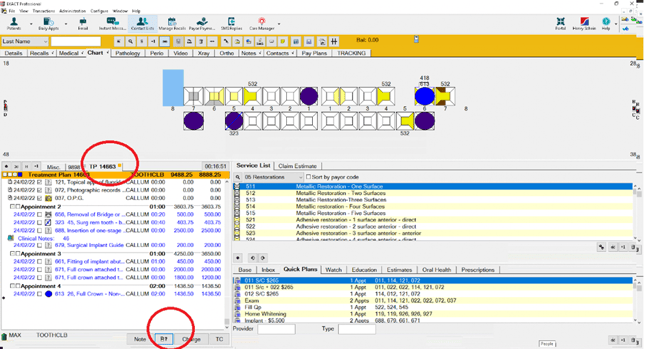
Step 2: Create the Treatment Estimate
-
Click Create an Estimate (as you normally would)
-
Choose:
-
Create an estimate for the current treatment plan
-
-
Confirm the date and provider
-
Click OK
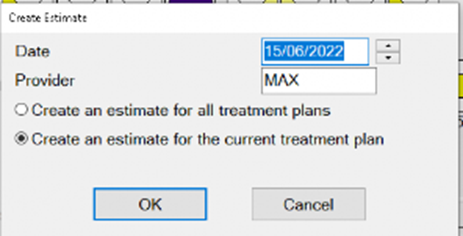
Step 3: Configure the Estimate Output
In the Print Standard Estimate window:
-
Select Graphical Estimate
-
Enable options as needed (e.g. charts, colours)
-
Confirm Show Line Item Pricing if required
-
Review the layout
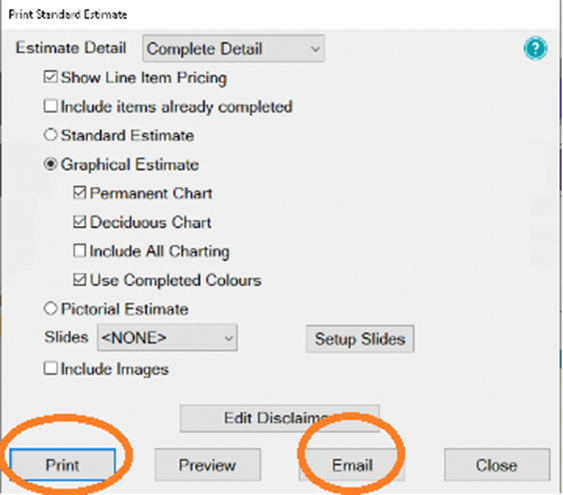
Step 4: Save the Estimate as a PDF
You can export the estimate in two ways:
Option A: Print to PDF
-
Click Print
-
Select Print to PDF
-
Save the file to your chosen folder
Option B: Email and Save
-
Click Email
-
From the email window, locate the attached estimate
-
Right-click the attachment and select Save
-
Save the file as a PDF to your computer
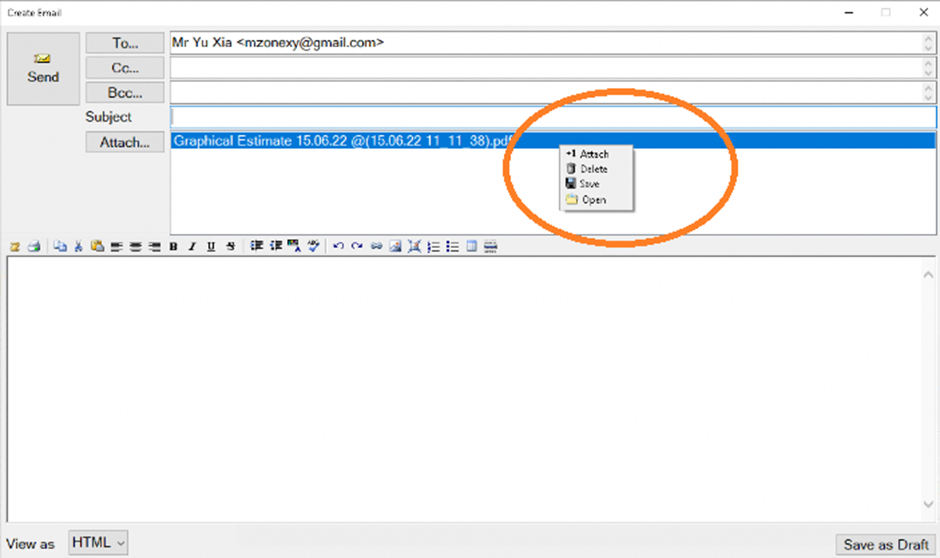
What to Do Next
Once saved, your PDF is ready to be uploaded into CoTreat.
You can now:
-
Open CoTreat
-
Create or send a Digital Treatment Plan
-
Import the PDF estimate alongside images or scans
Best Practice Tips
-
Use a consistent folder for all CoTreat exports
-
Name files clearly (e.g. PatientName_TreatmentPlan_Date.pdf)
-
Export images and estimates at the same time to avoid missing files
-
If you regularly export from Exact, ask your IT team about streamlining this process
Summary
Exporting your treatment plan from Exact as a PDF allows you to quickly reuse existing work inside CoTreat. Once saved, your plan can be uploaded, enhanced, and shared with patients through a clear, engaging Digital Treatment Plan.
If you need help at any stage, please contact our CoTreat Support team and we will be happy to assist.