
Overview
If you’re experiencing issues with your Core Practice integration, this guide walks you through the most common checks, how to re-integrate if needed, and how to update your location sync settings.
If you’re unable to resolve the issue using the steps below, please click the Help icon in CoTreat to contact our support team.
Before You Re-integrate (Quick Checks)
Before re-integrating, please confirm the following:
-
Core Practice is running normally
-
If Core Practice is experiencing issues, please contact Core Practice support first.
-
-
Your system is operating correctly
-
Check there are no local system or server issues affecting your practice software.
-
-
You’re connected to the internet
-
A stable internet connection is required for syncing.
-
If all of the above are confirmed, continue to the next step.
Re-integrating Core Practice
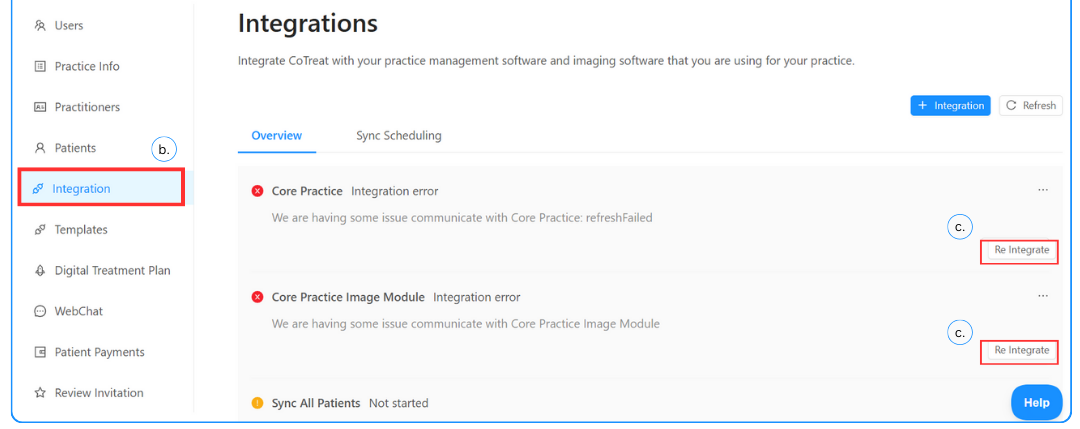
You can re-integrate Core Practice directly from within CoTreat.
Steps to Re-integrate
-
Click Settings ⚙️
-
Select Integration
-
Click Re-integrate for:
-
Core Practice, and/or
-
Core Practice Image Module
-
-
Follow the on-screen instructions
Important Note
If you do not see a “Re-integrate” button, this means re-integration is not the solution for your issue.
➡️ In this case, please reach out to our CoTreat Support team can assist you.
Managing Location Sync Settings
You can update which Core Practice locations sync with CoTreat at any time.
How to Change Locations
-
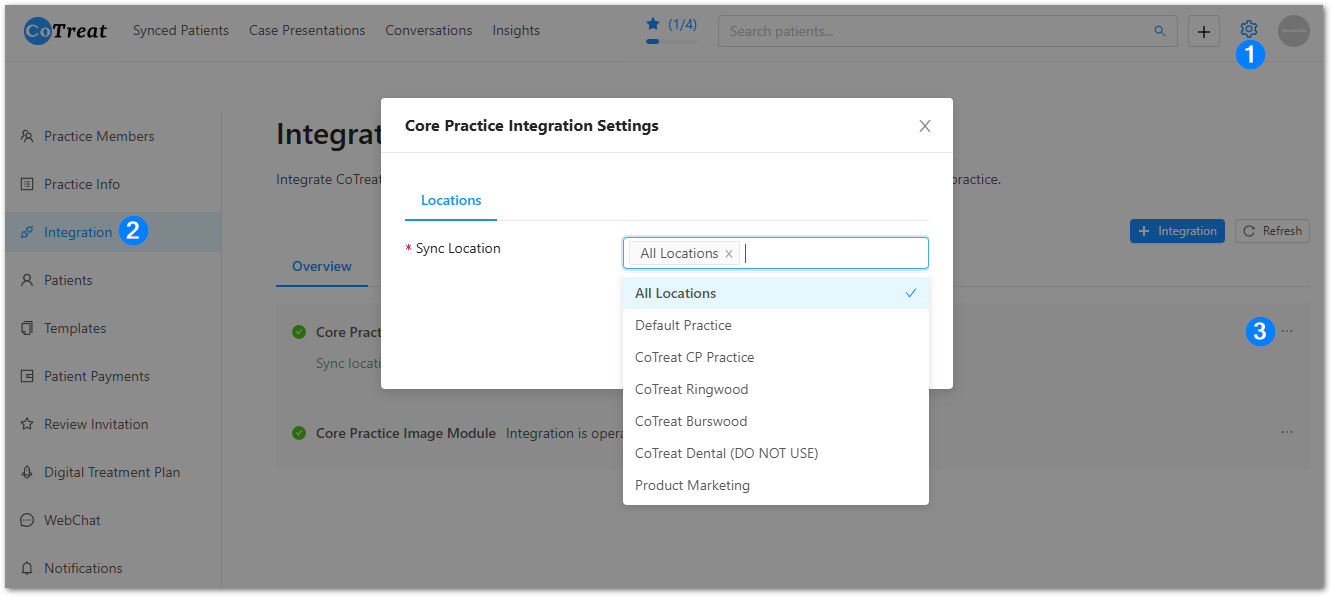
Go to Settings ⚙️ > Integration
-
Click the three dots (⋯) next to Core Practice
-
Select Settings
-
Update your Sync Location selection:
-
All locations
-
A single location
-
Multiple locations
-
-
Save your changes
What Happens When You Change Locations
When you modify location settings:
-
A new data sync is triggered immediately
-
Data will sync based on the new location selection
If you remove a location:
-
Existing synced data for that location is cleared
-
The integration data page will be temporarily empty
-
New data is retrieved based on updated settings
What is not removed:
-
Existing Digital Treatment Plans
-
Existing CoTreat Colleague reports
-
Existing patient or practitioner profiles
Important Location Sync Rule
If you do not select a location, syncing will be blocked.
Please ensure you choose one of the following:
-
All locations
-
A single location
-
Multiple locations
Screenshots above show how to update your location preferences.
Still Need Help?
If issues persist after following these steps:
-
Click the Help icon in CoTreat
-
Our support team will review your setup and assist you further
We’re here to make sure your integration runs smoothly.
Summary
This guide helps you:
-
Troubleshoot Core Practice integration issues
-
Safely re-integrate when needed
-
Update and manage synced locations
-
Understand what data is affected by changes
For anything outside these steps, our support team is only a click away.