
What you can do in Conversations
With Conversations, you can:
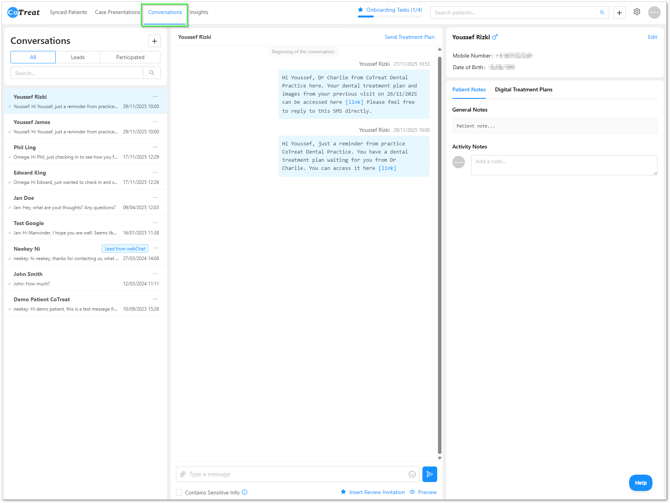
Message a patient
Reply to an existing conversation
Use this when a patient has already received or replied to a message.
-
Go to Conversations
-
Select the patient from the list
-
Type your message at the bottom
-
Click Send
The message will stay in the same conversation thread.
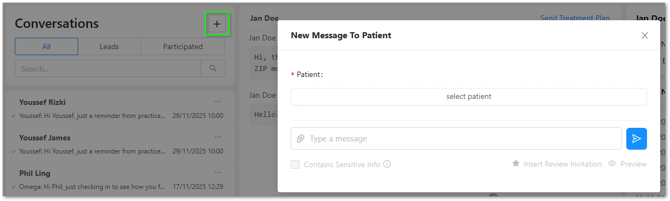
Send a new message to a patient
Use this when starting a new conversation.
-
Go to Conversations
-
Click the + icon
-
Select the patient
-
Type your message
-
Click Send
Send a Digital Treatment Plan from Conversations
You can send a treatment plan directly while viewing a patient conversation.
-
Open the patient conversation
-
Click Send Treatment Plan
-
Confirm:
-
Date of visit
-
Practitioner
-
Patient
-
-
Add treatments (or import an existing plan)
-
Select a template or add an optional Note to Patient
- Add Patient Images or 3D Models
-
Click Save and Send to Patient
The patient will receive an SMS with a link to their Digital Treatment Plan.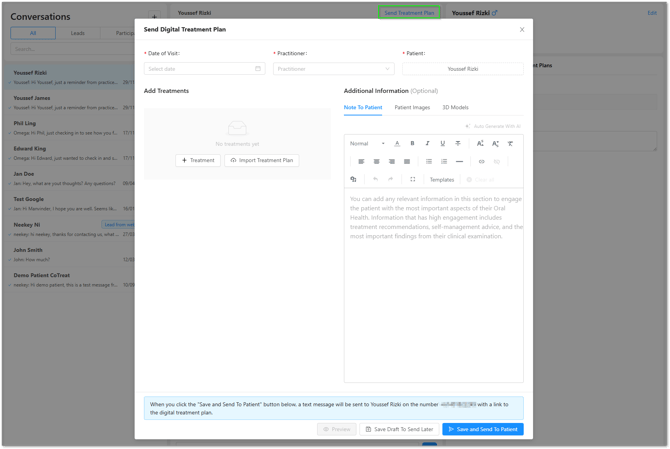
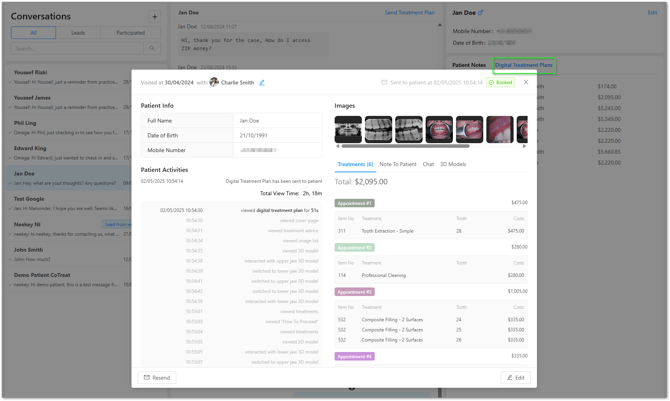
View Digital Treatment Plans
From the conversation view, you can:
-
Open previously sent plans under Digital Treatment Plans
-
View included treatments and total plan value
-
Access supporting images and 3D models (if included)
This helps your team quickly understand what has been shared with the patient.
View treatment plan status and engagement
Once a plan has been sent, you can:
-
See when the plan was sent
-
Check the current status (e.g. Waiting for response, Booked)
-
View when the patient opened the plan and how long they spent reviewing it
These insights can help guide follow-ups.
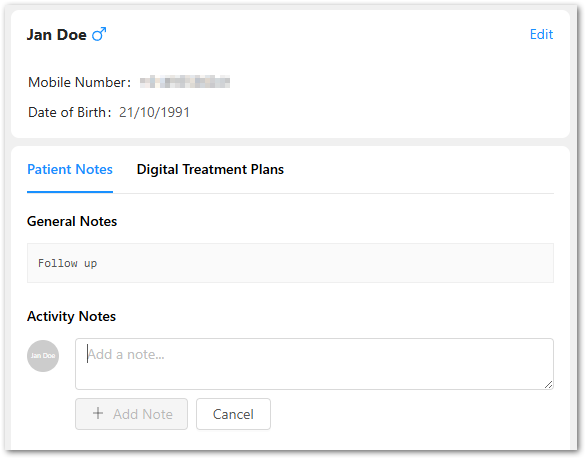
Use Patient Notes
Patient Notes are internal and not visible to patients.
General Notes
-
Store ongoing information about the patient
-
Useful for context across visits or conversations
Activity Notes
-
Add time-specific notes for your team
-
Helpful for follow-ups or handovers
To add a note:
-
Open the patient conversation
-
Go to Patient Notes
-
Enter your note and click Add Note
View and update patient details
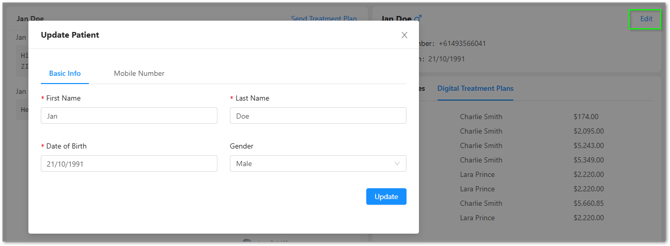
From the conversation view, you can:
-
See patient name, mobile number, and date of birth
-
Click Edit to update patient details if needed
Keeping patient information up to date helps ensure messages and plans are delivered correctly.
Best practice tips
-
Keep messages clear and friendly
-
Use Conversations for follow-ups and reminders rather than clinical detail
-
Add internal notes so your team stays aligned
-
Check plan status before sending reminders
Summary
Conversations helps your practice:
-
Communicate with patients in one place
-
Send and track Digital Treatment Plans
-
Keep patient details and notes organised
-
Support consistent follow-up across the team