
Who this is for
Practice Managers, Practice Owners, Admin, or IT contacts responsible for setting up integrations.
When you’d use this
You’ll complete this setup:
-
During onboarding to CoTreat
-
When connecting a new Dentally practice
-
If your Dentally integration has not yet been authorised
This setup only needs to be done once per practice.
Step-by-step: Connect Dentally to CoTreat
1. Create connection in Dentally
-
Log in to Dentally
-
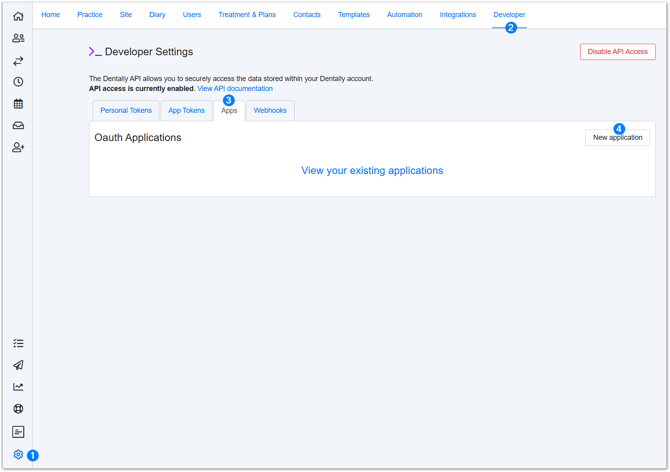
Select the Settings ⚙️ icon → Developer → Apps → Click New application
-
Enter the following details:
-
Name: CoTreat
-
Redirect URL:
https://cotreat-integration-dot-cotreat-prod.appspot.com/external/practice_integrations/dentally/oauth/callback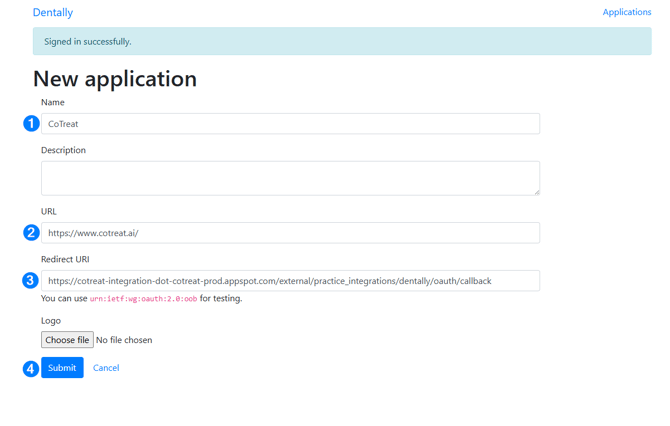
-
-
Click Submit
-
Copy and save the following details somewhere safe (for example, a notes app):
-
Application ID
-
Secret
-
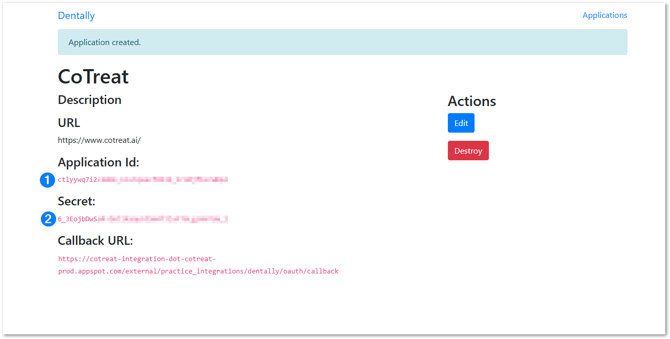
💡 You’ll need these details in the next step.
Part 2: Enter Dentally connection details in CoTreat
-
Log in to CoTreat
-
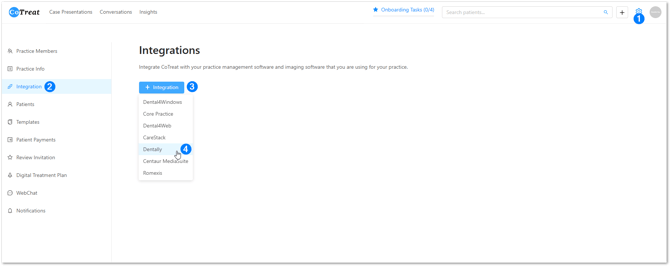
Click the Settings ⚙️ icon → Go to Integrations → Add Integration → Dentally
-
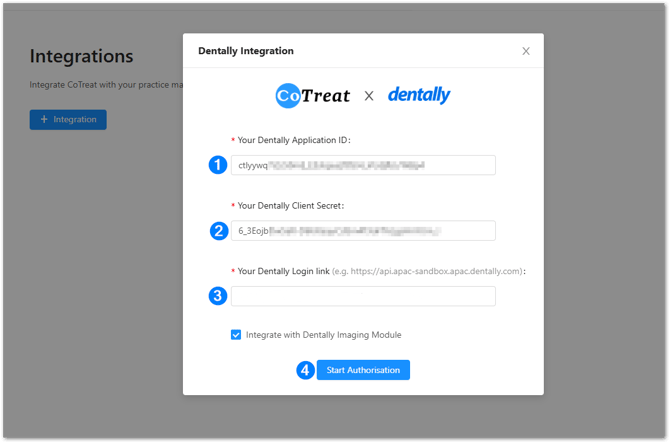
Enter the following:
- Dentally Application ID (from earlier)
- Dentally Secret (from earlier)
- Enter your Dentally login link
- Manually replace the text 'app' with 'api'
- Example: https://app.apac.dentally.com/
becomes: https://api.apac.dentally.com/ - Example 2: https://app.dentally.com/
becomes: https://api.dentally.com
-
Click Start Authorisation
⚠️ Important:
You must enter your Dentally login link starting with api, not app.
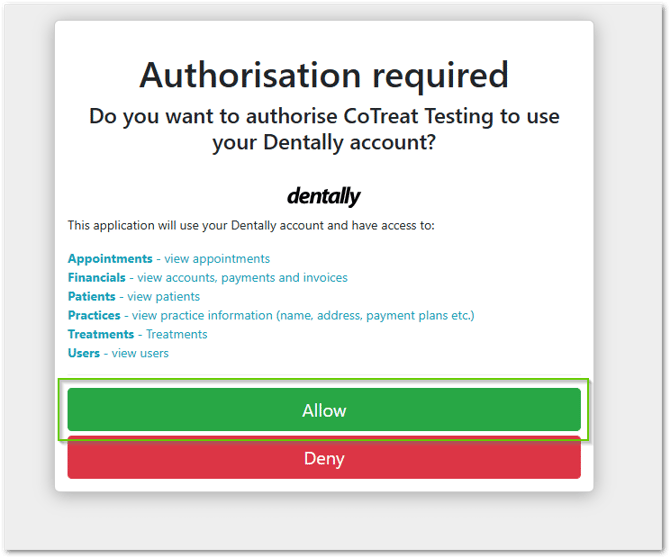
Part 3: Authorise access
-
If prompted, log in to Dentally
- Click Allow
- You’ll see a confirmation message in CoTreat:
“Connection between CoTreat and Dentally has been established.”
Your integration is complete and syncing has started.
Best-practice tips
-
Complete this setup during quieter clinic hours to avoid interruptions
-
Double-check the api login link - this is the most common cause of setup issues
-
Keep your Application ID and Secret stored securely
-
You only need to authorise Dentally once per practice
If something doesn’t look right
-
Re-check that the Dentally login link starts with api, not app
-
Make sure the Application ID and Secret were copied correctly
-
Try refreshing the Integrations page in CoTreat
If you’d like a hand or something doesn’t look right, our support team is happy to help.